> ## Documentation Index
> Fetch the complete documentation index at: https://docs.launchlemonade.app/llms.txt
> Use this file to discover all available pages before exploring further.
# Knowledge & Training
> Train your Lemonade with files, websites, and integrations
## Why Knowledge Matters
Want your Lemonade to know YOUR business? The Knowledge tab is where you share your documents, websites, and data - so your AI can give answers specific to you, not generic internet responses.
Good knowledge makes your Lemonade smarter, more accurate, and genuinely helpful for your unique needs.
## Accessing Knowledge Settings
Navigate to **Lemonades** and click on your Lemonade
Click the **Knowledge** tab in the editor
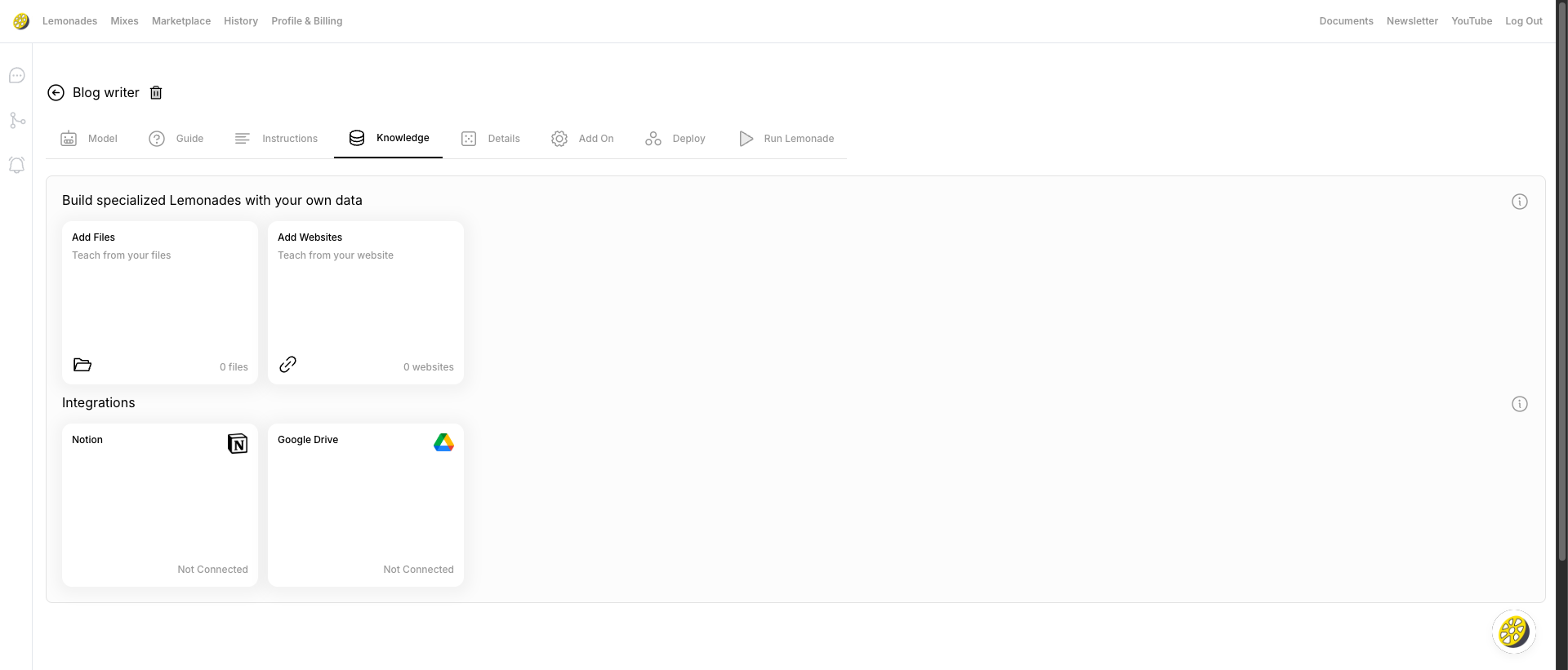 ## Three Ways to Add Knowledge
### 1. Add Files
Upload documents directly to train your Lemonade.
Click the **"Add Files"** button
Choose files from your computer
Files are automatically processed and ready to use
**Supported File Types:**
| Format | Extension | Best For |
| ------ | --------- | ------------------------ |
| PDF | .pdf | Manuals, reports, ebooks |
| Word | .docx | Documents, SOPs |
| Text | .txt | Simple text content |
| CSV | .csv | Data tables, lists |
| Excel | .xlsx | Spreadsheets |
Break large documents into smaller, focused files for better results. A 100-page manual should be split into logical sections.
### 2. Add Websites
Crawl and learn from web content.
Click the **"Add Websites"** button
Paste the website URL you want to crawl
Choose how many pages to crawl
Click to begin. Content is processed automatically
**Great for:**
* Product documentation
* FAQ pages
* Help center articles
* Blog content
* Company information
Only crawl websites you own or have permission to use. When in doubt, stick to your own content!
### 3. Integrations
Connect external data sources directly.
| Integration | Description | Use Case |
| ---------------- | ----------------------------- | ------------------------------ |
| **Notion** | Connect your Notion workspace | Team wikis, documentation |
| **Google Drive** | Connect your Drive files | Shared documents, spreadsheets |
Click on the integration you want to connect
Follow the prompts to connect your account (you'll see a familiar "Sign in with Google" or "Authorize" screen)
Choose which pages/files to sync
## Knowledge vs Brain
Understanding the difference:
| Feature | Knowledge (Tab 4) | Brain (Profile & Billing) |
| ------------ | ------------------- | ------------------------- |
| **Scope** | This Lemonade only | All your Lemonades |
| **Content** | Documents, websites | Persistent memory |
| **Use Case** | Domain expertise | Remembered facts |
| **Updates** | Manual uploads | Automatic learning |
Use **Knowledge** for specific expertise (product docs, FAQs). Use **Brain** for things that should be remembered across all conversations. Learn more in our [Memory guide](/Memory).
## For Best Results
**Start small** - A few focused documents work better than uploading everything at once. You can always add more later!
**Keep it fresh** - Update files when information changes. Old knowledge can lead to outdated answers.
**Remove duplicates** - Don't upload the same content multiple ways. Your AI will get confused if it sees contradicting information.
**Use clear names** - Name files descriptively so you know what's uploaded at a glance.
**Quality over quantity** - 10 well-organized pages beat 100 poorly structured ones.
### Content Quality Tips
* **Clean formatting** – Remove unnecessary headers/footers before uploading
* **Structured content** – Use headings and sections to help your AI understand the organization
* **Accurate information** – Verify facts before uploading
* **Plain language** – Avoid unnecessary jargon (unless your use case requires it)
### What NOT to Upload
* Sensitive personal data (unless necessary and secure)
* Copyrighted content you don't have rights to
* Outdated information
* Duplicate content in different formats
## Managing Knowledge
### View Uploaded Content
See all your uploaded files and websites in the Knowledge tab:
* File names and types
* Upload dates
* Processing status
### Delete Content
Remove outdated or irrelevant knowledge:
1. Find the file/website in your list
2. Click the delete icon
3. Confirm deletion
Deleting knowledge affects how your Lemonade responds immediately. Test after removing content to make sure your AI still has the information it needs.
## Troubleshooting
### File Won't Upload
* Check file size (max 25MB)
* Verify file format is supported
* Try a different browser
* Contact support if issues persist
### Website Won't Crawl
* Verify the URL is accessible
* Check if the site allows crawling
* Try a specific page instead of the homepage
* Ensure HTTPS is used
### Knowledge Not Being Used
* Verify the file/website processed successfully
* Check that your Instructions reference the knowledge
* Ask questions directly related to the uploaded content
* Re-upload if necessary
## What's Next
Give your Lemonade persistent memory that works across all conversations
Tell your AI how to use its knowledge effectively
## Three Ways to Add Knowledge
### 1. Add Files
Upload documents directly to train your Lemonade.
Click the **"Add Files"** button
Choose files from your computer
Files are automatically processed and ready to use
**Supported File Types:**
| Format | Extension | Best For |
| ------ | --------- | ------------------------ |
| PDF | .pdf | Manuals, reports, ebooks |
| Word | .docx | Documents, SOPs |
| Text | .txt | Simple text content |
| CSV | .csv | Data tables, lists |
| Excel | .xlsx | Spreadsheets |
Break large documents into smaller, focused files for better results. A 100-page manual should be split into logical sections.
### 2. Add Websites
Crawl and learn from web content.
Click the **"Add Websites"** button
Paste the website URL you want to crawl
Choose how many pages to crawl
Click to begin. Content is processed automatically
**Great for:**
* Product documentation
* FAQ pages
* Help center articles
* Blog content
* Company information
Only crawl websites you own or have permission to use. When in doubt, stick to your own content!
### 3. Integrations
Connect external data sources directly.
| Integration | Description | Use Case |
| ---------------- | ----------------------------- | ------------------------------ |
| **Notion** | Connect your Notion workspace | Team wikis, documentation |
| **Google Drive** | Connect your Drive files | Shared documents, spreadsheets |
Click on the integration you want to connect
Follow the prompts to connect your account (you'll see a familiar "Sign in with Google" or "Authorize" screen)
Choose which pages/files to sync
## Knowledge vs Brain
Understanding the difference:
| Feature | Knowledge (Tab 4) | Brain (Profile & Billing) |
| ------------ | ------------------- | ------------------------- |
| **Scope** | This Lemonade only | All your Lemonades |
| **Content** | Documents, websites | Persistent memory |
| **Use Case** | Domain expertise | Remembered facts |
| **Updates** | Manual uploads | Automatic learning |
Use **Knowledge** for specific expertise (product docs, FAQs). Use **Brain** for things that should be remembered across all conversations. Learn more in our [Memory guide](/Memory).
## For Best Results
**Start small** - A few focused documents work better than uploading everything at once. You can always add more later!
**Keep it fresh** - Update files when information changes. Old knowledge can lead to outdated answers.
**Remove duplicates** - Don't upload the same content multiple ways. Your AI will get confused if it sees contradicting information.
**Use clear names** - Name files descriptively so you know what's uploaded at a glance.
**Quality over quantity** - 10 well-organized pages beat 100 poorly structured ones.
### Content Quality Tips
* **Clean formatting** – Remove unnecessary headers/footers before uploading
* **Structured content** – Use headings and sections to help your AI understand the organization
* **Accurate information** – Verify facts before uploading
* **Plain language** – Avoid unnecessary jargon (unless your use case requires it)
### What NOT to Upload
* Sensitive personal data (unless necessary and secure)
* Copyrighted content you don't have rights to
* Outdated information
* Duplicate content in different formats
## Managing Knowledge
### View Uploaded Content
See all your uploaded files and websites in the Knowledge tab:
* File names and types
* Upload dates
* Processing status
### Delete Content
Remove outdated or irrelevant knowledge:
1. Find the file/website in your list
2. Click the delete icon
3. Confirm deletion
Deleting knowledge affects how your Lemonade responds immediately. Test after removing content to make sure your AI still has the information it needs.
## Troubleshooting
### File Won't Upload
* Check file size (max 25MB)
* Verify file format is supported
* Try a different browser
* Contact support if issues persist
### Website Won't Crawl
* Verify the URL is accessible
* Check if the site allows crawling
* Try a specific page instead of the homepage
* Ensure HTTPS is used
### Knowledge Not Being Used
* Verify the file/website processed successfully
* Check that your Instructions reference the knowledge
* Ask questions directly related to the uploaded content
* Re-upload if necessary
## What's Next
Give your Lemonade persistent memory that works across all conversations
Tell your AI how to use its knowledge effectively