> ## Documentation Index
> Fetch the complete documentation index at: https://docs.launchlemonade.app/llms.txt
> Use this file to discover all available pages before exploring further.

# Deployment Options

> Deploy your Lemonade via email, website embed, or API

## Your Lemonade is Ready!

You've built something amazing - now let's put it to work! You can:

1. **Email it** – Chat with your AI right from your inbox (like having a helpful colleague on call 24/7)
2. **Add it to your website** – Give visitors instant AI-powered help without them leaving your site
3. **Sell access** – Turn your Lemonade into a business on your own domain with subscription billing

Most users start with Email deployment (it's free and takes 30 seconds). Once you're ready to share with others, explore Embed or Subscription options.

## Accessing Deployment Options

<Steps>
  <Step title="Open Lemonade Editor">
    Navigate to **Lemonades** and click on your Lemonade
  </Step>

  <Step title="Go to Deploy Tab">
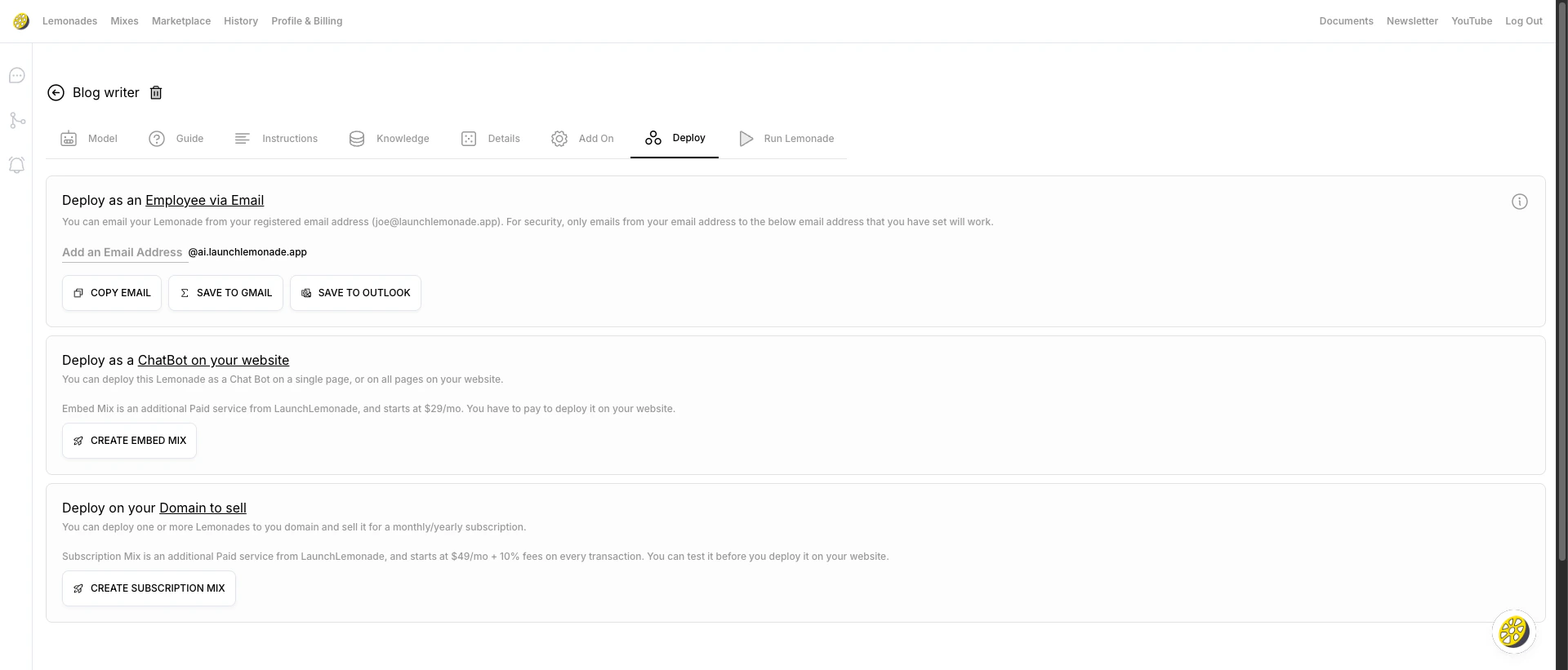
    Click the **Deploy** tab (Tab 7) in the editor
  </Step>
</Steps>

<img src="https://mintcdn.com/launchlemonade/09AVKrbfCzNjF-L3/images/deployment/deployment-tab-01-overview.png?fit=max&auto=format&n=09AVKrbfCzNjF-L3&q=85&s=de1d479d8d337568b02c8f00aa4b7359" alt="Deploy tab showing Email, Embed, and Subscription deployment options" style={{maxWidth: "600px"}} width="1920" height="821" data-path="images/deployment/deployment-tab-01-overview.png" />

***

## Option 1: Deploy as Email Employee

Imagine having an AI assistant you can email anytime - that's exactly what this does. Set it up in under a minute!

### How It Works

1. Your Lemonade gets a custom email: `yourname@ai.launchlemonade.app`
2. You email questions to this address
3. Your Lemonade responds via email

### Setup Steps

<Steps>
  <Step title="Create Custom Email">
    Enter your desired email prefix (e.g., `support`, `cto`, `assistant`)
  </Step>

  <Step title="Save the Email">
    Click **COPY EMAIL**, **SAVE TO GMAIL**, or **SAVE TO OUTLOOK**
  </Step>

  <Step title="Start Emailing">
    Send messages from your registered email address
  </Step>
</Steps>

<Warning>
  **Security Note:** For your protection, only emails from your registered email address will be processed. Others will be ignored.
</Warning>

### Use Cases

| Use Case           | Example                       |
| ------------------ | ----------------------------- |
| Personal assistant | Email your AI for research    |
| Quick queries      | Get answers on-the-go         |
| Mobile-friendly    | Use any email client          |
| Integration        | Forward emails for processing |

***

## Option 2: Website Chatbot (Embed Mix)

Add a chat widget to your website so visitors can interact with your Lemonade. Perfect for customer support, FAQs, or lead generation.

**Pricing:** [Contact us](https://launchlemonade.app/pricing/)

### Setup Steps

<Steps>
  <Step title="Click Create Embed Mix">
    In the Deploy tab, click **"CREATE EMBED MIX"**
  </Step>

  <Step title="Configure Branding">
    Customize colors, logo, and widget appearance to match your site
  </Step>

  <Step title="Get Embed Code">
    Copy the JavaScript snippet provided
  </Step>

  <Step title="Add to Website">
    Paste the code before `</body>` in your HTML
  </Step>
</Steps>

<AccordionGroup>
  <Accordion title="Embed Code Example">
    Here's what the embed code looks like (don't worry, you just need to copy and paste it - no coding skills required):

    ```html theme={null}
    <!-- LaunchLemonade Chat Widget -->
    <script>
      (function(w,d,s,l,i){
        w[l]=w[l]||[];
        var f=d.getElementsByTagName(s)[0],
        j=d.createElement(s);
        j.async=true;
        j.src='https://embed.launchlemonade.app/'+i+'.js';
        f.parentNode.insertBefore(j,f);
      })(window,document,'script','ll','YOUR_EMBED_ID');
    </script>
    ```
  </Accordion>
</AccordionGroup>

### Customization Options

| Option              | Description                     |
| ------------------- | ------------------------------- |
| **Primary Color**   | Match your brand colors         |
| **Logo**            | Display your logo in the widget |
| **Position**        | Bottom-right or bottom-left     |
| **Welcome Message** | Initial greeting visitors see   |
| **Button Text**     | Customize the chat button       |

<Tip>
  Test your embed on a staging site before going live. Make sure it looks good on mobile too!
</Tip>

***

## Option 3: Domain & Monetization (Subscription Mix)

Ready to turn your Lemonade into a business? Sell access with subscription billing, custom domains, and user management.

**Pricing:** [Contact us](https://launchlemonade.app/pricing/)

### What You Get

* Custom domain support (e.g., `yourai.com`)
* Subscription management (monthly, yearly, or per-query)
* Payment processing via Stripe
* User management dashboard
* Analytics and usage tracking

### Setup Steps

<Steps>
  <Step title="Click Create Subscription Mix">
    In the Deploy tab, click **"CREATE SUBSCRIPTION MIX"**
  </Step>

  <Step title="Configure Pricing">
    Set your subscription price and billing cycle
  </Step>

  <Step title="Set Up Domain">
    Connect your custom domain (optional but recommended)
  </Step>

  <Step title="Configure Payments">
    Connect your Stripe account to receive payments
  </Step>

  <Step title="Go Live">
    Test thoroughly, then publish and start selling!
  </Step>
</Steps>

### Monetization Models

| Model         | Description                                           |
| ------------- | ----------------------------------------------------- |
| **Monthly**   | Recurring monthly charge                              |
| **Yearly**    | Annual subscription (offer a discount for commitment) |
| **Per-query** | Pay per use (great for testing willingness to pay)    |

***

## Comparison Chart

| Feature           | Email      | Embed                                             | Subscription                                      |
| ----------------- | ---------- | ------------------------------------------------- | ------------------------------------------------- |
| **Use Case**      | Personal   | Website                                           | Business                                          |
| **Users**         | Just you   | Your visitors                                     | Paying customers                                  |
| **Custom Domain** | No         | No                                                | Yes                                               |
| **Revenue**       | No         | No                                                | Yes                                               |
| **Pricing**       | Free       | [Contact us](https://launchlemonade.app/pricing/) | [Contact us](https://launchlemonade.app/pricing/) |
| **Setup Time**    | 30 seconds | 10 minutes                                        | 30 minutes                                        |

***

## Best Practices

### For Email Deployment

* Use descriptive email addresses (`support@ai.launchlemonade.app` not `bot1@ai.launchlemonade.app`)
* Set up email filters to organize responses
* Include context in your emails for better responses
* Test it first by sending yourself a question!

### For Website Embeds

* Match the widget to your brand colors so it feels native
* Write a compelling welcome message that tells visitors what your AI can help with
* Test on all device sizes (especially mobile!)
* Monitor chat analytics to see what questions people ask

### For Monetization

* Start with competitive pricing - you can always raise it later
* Offer a free trial or demo so people can try before buying
* Provide excellent documentation for your subscribers
* Monitor user feedback and iterate based on what they need

***

## Troubleshooting

### Email Not Working

* Verify you're sending from your registered email address
* Check spam folders for responses (add the AI address to contacts)
* Ensure the Lemonade is active in your dashboard
* Try sending a simple test question

### Embed Not Showing

* Verify the script is placed before `</body>` tag
* Check browser console for JavaScript errors (press F12)
* Ensure no ad blockers are interfering
* Test in an incognito window
* Clear your browser cache

### Payment Issues

* Verify Stripe account is properly connected
* Check currency settings match your region
* Test with Stripe test mode before going live
* Contact support for transaction disputes

***

## What's Next

<CardGroup cols={2}>
  <Card title="Track Usage in History" icon="clock-rotate-left" href="/history">
    Monitor all conversations with your deployed Lemonade
  </Card>

  <Card title="Explore Whitelabelling" icon="palette" href="/Whitelabelling">
    Learn more about Mixes and customization options
  </Card>
</CardGroup>
