> ## Documentation Index
> Fetch the complete documentation index at: https://docs.launchlemonade.app/llms.txt
> Use this file to discover all available pages before exploring further.
# Whitelabelling Your Lemonades (Mixes)
> Package and deploy your Lemonades as branded chatbots
## Why Create a Mix?
You've built a Lemonade that works perfectly. Now what? A Mix is how you share it with the world - whether that's adding it to your website, selling subscriptions, or connecting it as a team tool.
Think of it as taking your Lemonade off the shelf and putting it somewhere people can actually use it, with your branding front and center.
## What is a Mix?
When you're ready to share your Lemonade with the world, you create a Mix. Think of it as packaging your Lemonade with your branding - ready to embed on your website or sell to customers.
A Mix lets you:
* Add it as a **Chatbot** on your website
* **Monetize** it by selling subscriptions
* Connect it as a **Team** tool
The key word is "whitelabeling" - that means your logo, your colors, your domain. Not ours!
## Accessing Mixes
Click **Mixes** in the top navigation bar to see all your Mixes.
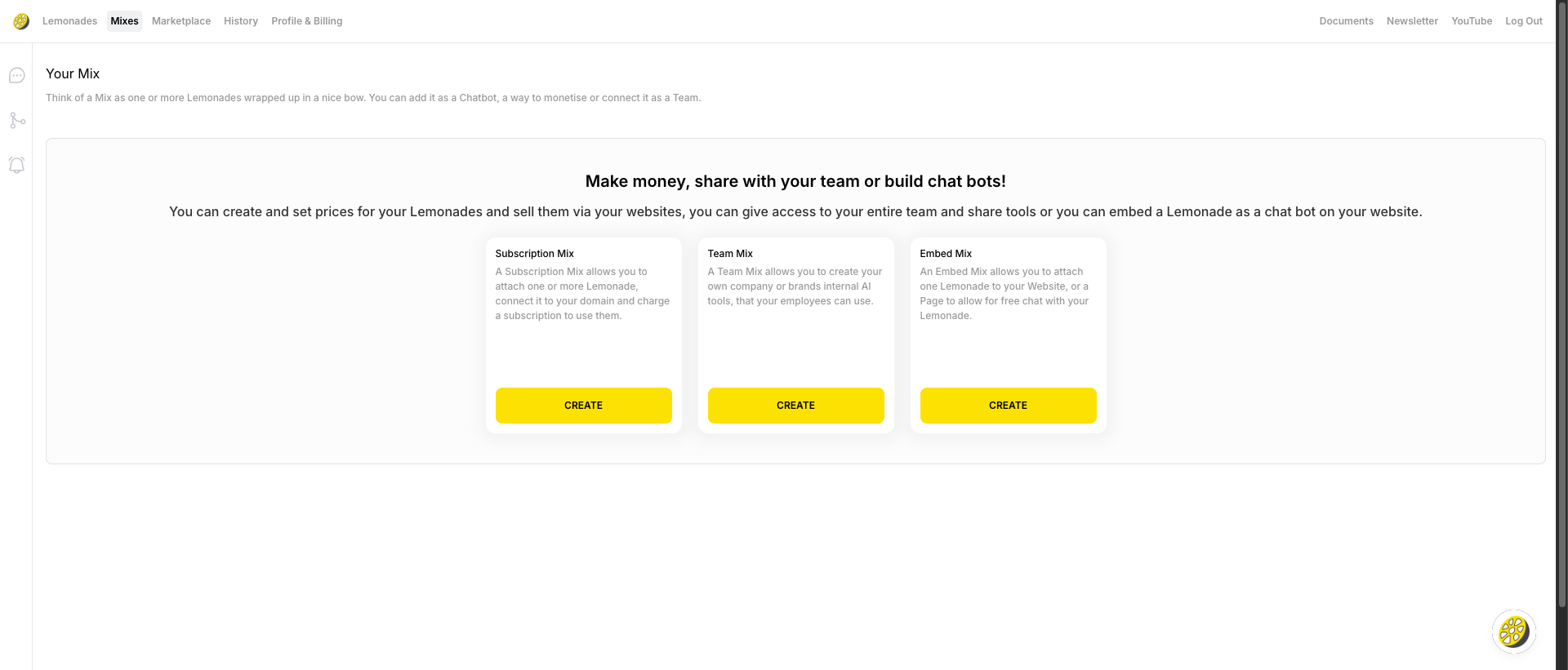 Each Mix shows:
* Mix name and type (e.g., "Business Mix")
* Number of chats
* **Upgrade** and **Edit** buttons
## Creating a Mix
### From the Mixes Page
Click **Mixes** in the top navigation
Click the **"+ CREATE MIX"** button in the top right
Follow the setup wizard to configure branding and select Lemonades
### From a Lemonade's Deploy Tab
Click on any Lemonade to open the editor
Click the **Deploy** tab
Click either:
* **"CREATE EMBED MIX"** for website chatbots
* **"CREATE SUBSCRIPTION MIX"** for monetization
## Mix Types
### Embed Mix (Website Chatbot)
Deploy your Lemonade as a chat widget on your website.
**Features:**
* Embed on a single page or all pages
* Custom branding and colors
* Works on any website
Perfect for customer support, lead capture, or helping visitors find what they need.
### Subscription Mix (Sell Access)
Sell access to your Lemonade on your own domain.
**Features:**
* Deploy to your custom domain
* Charge monthly or yearly subscriptions
* Test before going live
Turn your expertise into recurring revenue - great for coaches, consultants, and creators.
## Editing a Mix
Click the **Edit** button next to any Mix to:
* Change the Mix name
* Update branding (colors, logo)
* Modify which Lemonades are included
* Get the embed code
* Configure subscription settings
## Getting Your Embed Code
Once you've created an Embed Mix:
Click **Edit** on your Mix
Find the embed code section and copy the provided snippet
Paste the code into your website's HTML, typically before the closing `` tag
## Deploying Without a Mix (Email)
Don't need a website widget? You can deploy directly via email:
Each Mix shows:
* Mix name and type (e.g., "Business Mix")
* Number of chats
* **Upgrade** and **Edit** buttons
## Creating a Mix
### From the Mixes Page
Click **Mixes** in the top navigation
Click the **"+ CREATE MIX"** button in the top right
Follow the setup wizard to configure branding and select Lemonades
### From a Lemonade's Deploy Tab
Click on any Lemonade to open the editor
Click the **Deploy** tab
Click either:
* **"CREATE EMBED MIX"** for website chatbots
* **"CREATE SUBSCRIPTION MIX"** for monetization
## Mix Types
### Embed Mix (Website Chatbot)
Deploy your Lemonade as a chat widget on your website.
**Features:**
* Embed on a single page or all pages
* Custom branding and colors
* Works on any website
Perfect for customer support, lead capture, or helping visitors find what they need.
### Subscription Mix (Sell Access)
Sell access to your Lemonade on your own domain.
**Features:**
* Deploy to your custom domain
* Charge monthly or yearly subscriptions
* Test before going live
Turn your expertise into recurring revenue - great for coaches, consultants, and creators.
## Editing a Mix
Click the **Edit** button next to any Mix to:
* Change the Mix name
* Update branding (colors, logo)
* Modify which Lemonades are included
* Get the embed code
* Configure subscription settings
## Getting Your Embed Code
Once you've created an Embed Mix:
Click **Edit** on your Mix
Find the embed code section and copy the provided snippet
Paste the code into your website's HTML, typically before the closing `` tag
## Deploying Without a Mix (Email)
Don't need a website widget? You can deploy directly via email: