> ## Documentation Index
> Fetch the complete documentation index at: https://docs.launchlemonade.app/llms.txt
> Use this file to discover all available pages before exploring further.
# Setting Up Your AI Memory (No Code Required!) 🍋
> Give your Lemonades persistent memory with the Brain feature
## Why Memory Matters
Your LaunchLemonade Lemonades get smarter and more helpful when they remember key facts about you, your brand, and your work. Good memory means fewer repeats, faster results, and a more personal experience.
## Understanding Brain vs Knowledge
LaunchLemonade has two ways to give your Lemonades information:
| Feature | Location | Purpose |
| ------------- | ------------------------------- | ---------------------------------------------------------------- |
| **Brain** | Profile & Billing → Brain tab | Account-wide memory that can be shared across multiple Lemonades |
| **Knowledge** | Lemonade Editor → Knowledge tab | Lemonade-specific files, websites, and integrations |
## Setting Up Your Brain
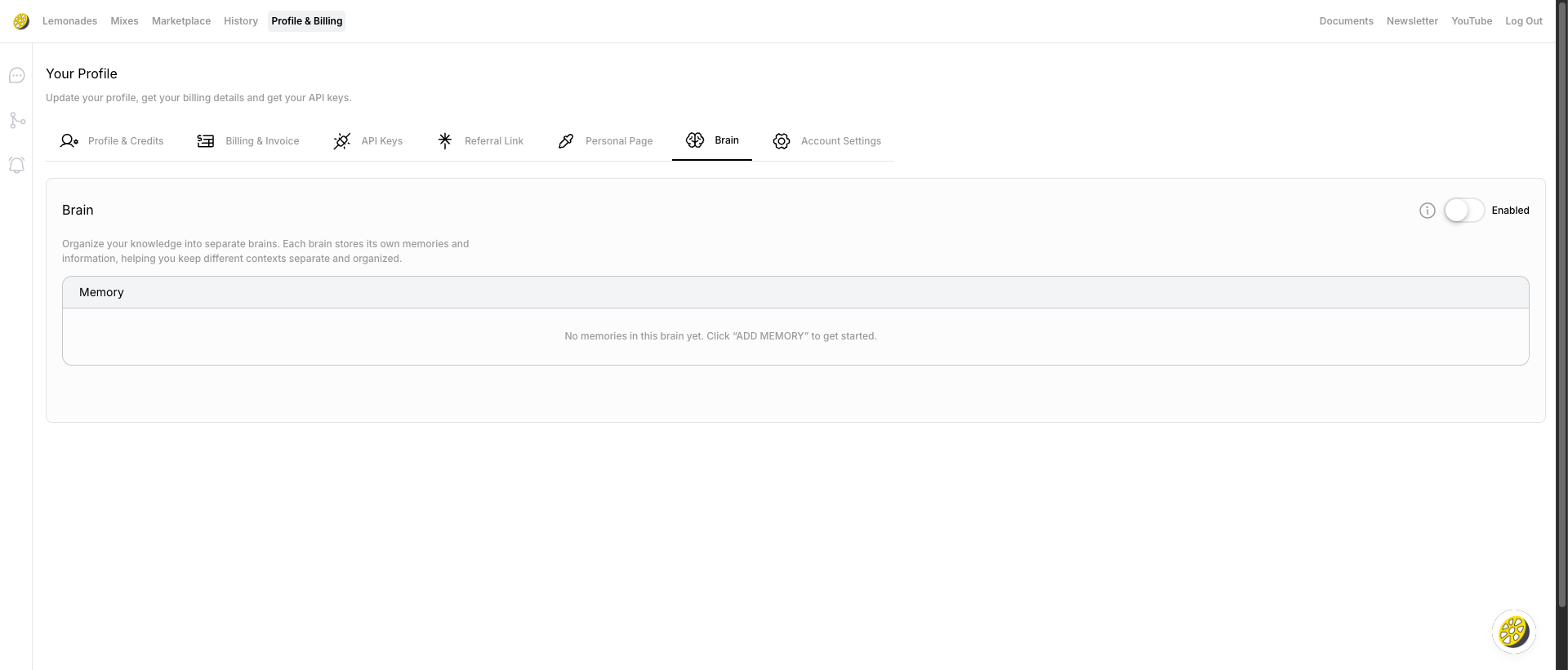
The Brain feature lets you organize your knowledge into separate contexts that any Lemonade can access.
### Accessing the Brain
Click **Profile & Billing** in the top navigation bar
Click the **Brain** tab (6th tab, with globe icon)
Make sure the **Enabled** toggle is turned on (green)
 ### Creating Multiple Brains
You can organize your knowledge into separate brains for different contexts:
* Click **"+ Add New Brain"** to create a new brain
* Each brain has its own tab (e.g., "Dyslexic", "test")
* Switch between brains by clicking on their tabs
### Adding Memory to a Brain
Simply type or paste information into the text area. Each brain stores its own memories and information, helping you keep different contexts separate and organized.
**Example entries:**
```text theme={null}
"My name is Dan. I'm dyslexic and prefer responses in clear bullet points."
"My company name is Acme Corp and we sell widgets."
"Always respond in a friendly, professional tone."
```
### Linking Brain to a Lemonade
Go to **Lemonades** and click on a Lemonade to edit it
Click the **Details** tab in the Lemonade editor
Use the **Brain** dropdown to select which brain context to use
### Creating Multiple Brains
You can organize your knowledge into separate brains for different contexts:
* Click **"+ Add New Brain"** to create a new brain
* Each brain has its own tab (e.g., "Dyslexic", "test")
* Switch between brains by clicking on their tabs
### Adding Memory to a Brain
Simply type or paste information into the text area. Each brain stores its own memories and information, helping you keep different contexts separate and organized.
**Example entries:**
```text theme={null}
"My name is Dan. I'm dyslexic and prefer responses in clear bullet points."
"My company name is Acme Corp and we sell widgets."
"Always respond in a friendly, professional tone."
```
### Linking Brain to a Lemonade
Go to **Lemonades** and click on a Lemonade to edit it
Click the **Details** tab in the Lemonade editor
Use the **Brain** dropdown to select which brain context to use
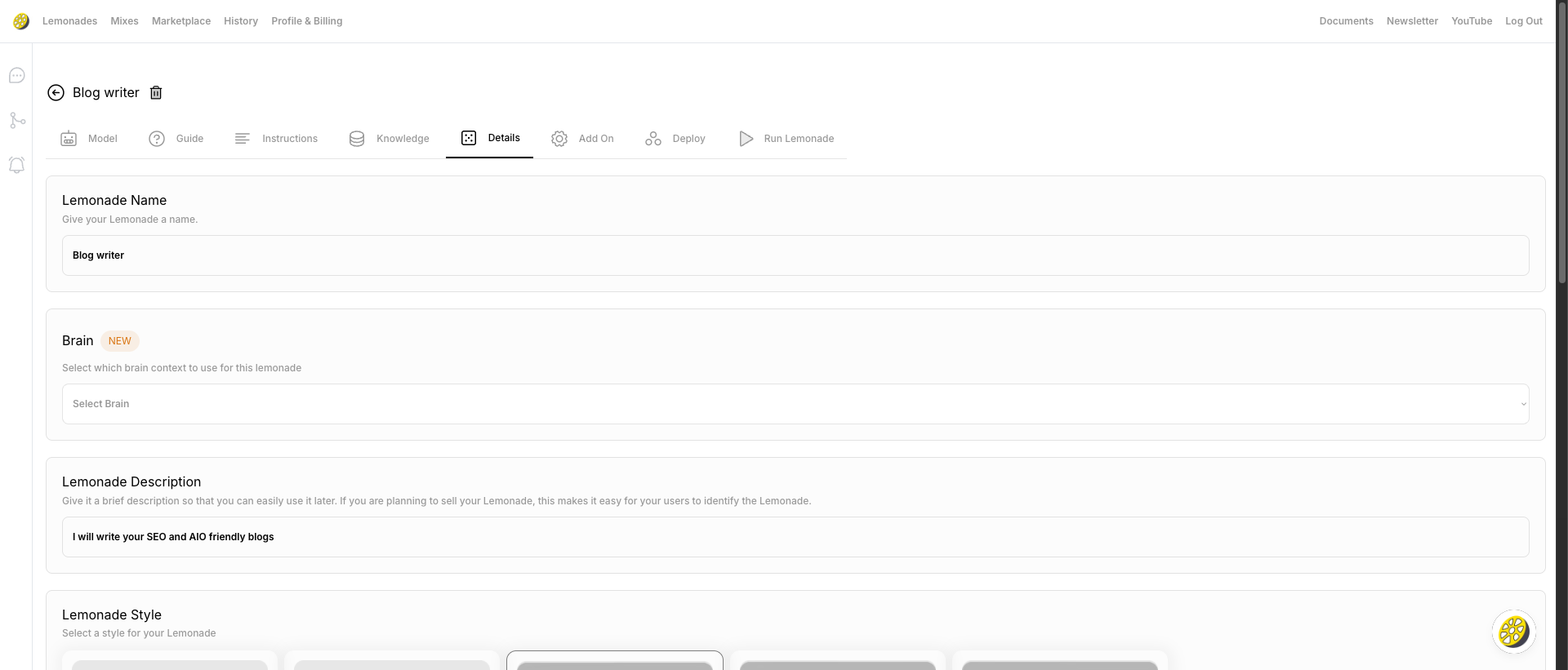 The Brain feature is marked as **NEW** in the Details tab!
## Adding Knowledge to Individual Lemonades
For Lemonade-specific knowledge, use the Knowledge tab:
### Accessing Knowledge
Click on any Lemonade from your dashboard
Click the **Knowledge** tab (4th tab)
### Adding Files
Click **"Add Files"** to upload documents:
* PDFs, Word documents, spreadsheets
* The files will be processed and your Lemonade can reference them
### Adding Websites
Click **"Add Websites"** to teach from web content:
* Enter any URL
* Your Lemonade will crawl and learn from the content
### Integrations
Connect external sources:
* **Notion** – Connect your Notion workspace
* **Google Drive** – Connect your Google Drive files
## Remember All Conversations
Want your Lemonade to remember every chat automatically?
Open your Lemonade and click the **Add On** tab
Toggle on **"Remember all conversations with this Lemonade"**
This remembers ALL conversations. It does not change your instructions—it only allows the Lemonade to recall previous chats.
## Saving Individual Insights
During any chat, you can save specific responses to memory:
1. Find a response you want to save
2. Click the **brain 🧠 icon** below the response
3. The insight is saved directly to that Lemonade's memory
This is perfect for keeping important decisions, facts, or answers without enabling full conversation memory.
## What Makes Good Memory Content?
For best results, focus on core facts, preferences, and principles:
### About You (the User)
* Your name and how to pronounce it
* Your role and goals
* Your top priorities for the next 3 months
* How you like to receive info (e.g., "Summarise in bullet points")
* Your preferred working style or communication tone
### About Your Brand or Business
* Mission and vision statement
* Your brand values or voice (e.g., "We're playful but always professional")
* Key products or services (with short descriptions)
* Ideal customer or audience (with examples)
* Taglines or slogans
### Useful Workflows
* Step-by-step checklists you use often
* Templates for reports, emails, or documents
* Key FAQs and answers for your team or customers
### Other Ideas
* Recent wins or case studies
* Common objections in sales or support
## Pro Tips
Update memory as your goals or business change.
Short, clear facts work best (think "cheat notes").
No passwords or private addresses.
If you paste a long doc, add a summary or key bullet points.
Check what your Lemonade "remembers" periodically.
Create different brains for different projects or contexts.
## Example Memory Entries
```text theme={null}
"My name is Cien, pronounced 'Shen'."
"LaunchLemonade's tone is fun, zesty, and a bit cheeky, but always helpful."
"My top goal this quarter: Grow LinkedIn followers to 5,000."
"Our onboarding process: 1. Welcome call; 2. Needs survey; 3. Product demo."
"Key slogan: 'One brain, all the best models.'"
"We never share sensitive client data without written consent."
```
## Quick Start Checklist
Profile & Billing → Brain → Add your core facts
Lemonade → Details → Select your Brain
Lemonade → Knowledge → Upload files or websites
Run your Lemonade and ask it to recall a fact you've saved
Want more tips? Check our [YouTube channel](https://youtube.com/@launchlemonade) or join our [WhatsApp community](https://chat.whatsapp.com/KeeA2yriNoQ8rDqzhIMP2u) for real-world memory hacks!
The Brain feature is marked as **NEW** in the Details tab!
## Adding Knowledge to Individual Lemonades
For Lemonade-specific knowledge, use the Knowledge tab:
### Accessing Knowledge
Click on any Lemonade from your dashboard
Click the **Knowledge** tab (4th tab)
### Adding Files
Click **"Add Files"** to upload documents:
* PDFs, Word documents, spreadsheets
* The files will be processed and your Lemonade can reference them
### Adding Websites
Click **"Add Websites"** to teach from web content:
* Enter any URL
* Your Lemonade will crawl and learn from the content
### Integrations
Connect external sources:
* **Notion** – Connect your Notion workspace
* **Google Drive** – Connect your Google Drive files
## Remember All Conversations
Want your Lemonade to remember every chat automatically?
Open your Lemonade and click the **Add On** tab
Toggle on **"Remember all conversations with this Lemonade"**
This remembers ALL conversations. It does not change your instructions—it only allows the Lemonade to recall previous chats.
## Saving Individual Insights
During any chat, you can save specific responses to memory:
1. Find a response you want to save
2. Click the **brain 🧠 icon** below the response
3. The insight is saved directly to that Lemonade's memory
This is perfect for keeping important decisions, facts, or answers without enabling full conversation memory.
## What Makes Good Memory Content?
For best results, focus on core facts, preferences, and principles:
### About You (the User)
* Your name and how to pronounce it
* Your role and goals
* Your top priorities for the next 3 months
* How you like to receive info (e.g., "Summarise in bullet points")
* Your preferred working style or communication tone
### About Your Brand or Business
* Mission and vision statement
* Your brand values or voice (e.g., "We're playful but always professional")
* Key products or services (with short descriptions)
* Ideal customer or audience (with examples)
* Taglines or slogans
### Useful Workflows
* Step-by-step checklists you use often
* Templates for reports, emails, or documents
* Key FAQs and answers for your team or customers
### Other Ideas
* Recent wins or case studies
* Common objections in sales or support
## Pro Tips
Update memory as your goals or business change.
Short, clear facts work best (think "cheat notes").
No passwords or private addresses.
If you paste a long doc, add a summary or key bullet points.
Check what your Lemonade "remembers" periodically.
Create different brains for different projects or contexts.
## Example Memory Entries
```text theme={null}
"My name is Cien, pronounced 'Shen'."
"LaunchLemonade's tone is fun, zesty, and a bit cheeky, but always helpful."
"My top goal this quarter: Grow LinkedIn followers to 5,000."
"Our onboarding process: 1. Welcome call; 2. Needs survey; 3. Product demo."
"Key slogan: 'One brain, all the best models.'"
"We never share sensitive client data without written consent."
```
## Quick Start Checklist
Profile & Billing → Brain → Add your core facts
Lemonade → Details → Select your Brain
Lemonade → Knowledge → Upload files or websites
Run your Lemonade and ask it to recall a fact you've saved
Want more tips? Check our [YouTube channel](https://youtube.com/@launchlemonade) or join our [WhatsApp community](https://chat.whatsapp.com/KeeA2yriNoQ8rDqzhIMP2u) for real-world memory hacks!